Using PowerPoint with Screen Sharing in Safari
This tutorial assumes you have already connected to the class video session. Instructions for connecting to video sessions can be found here: Gibbon Class Video Access
- Open your PowerPoint presentation.
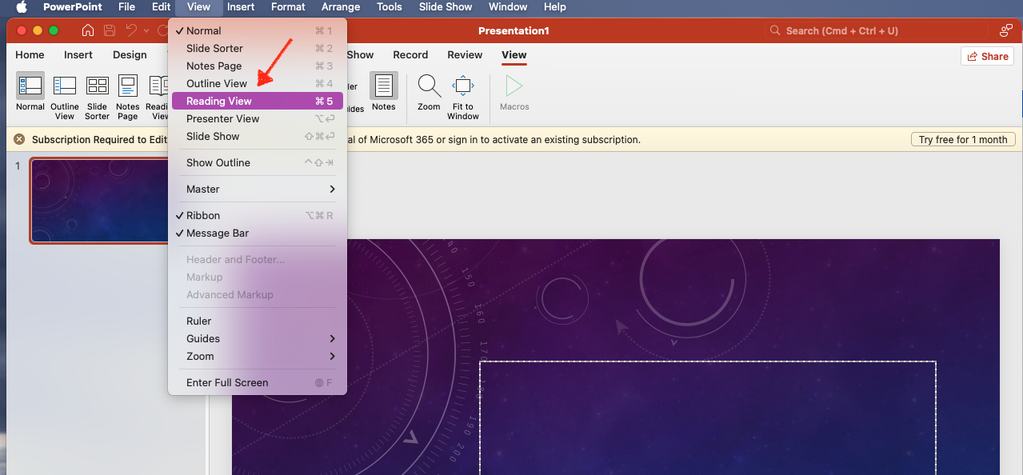
- Choose View > Reading View. This will switch to presentation mode without going fullscreen.
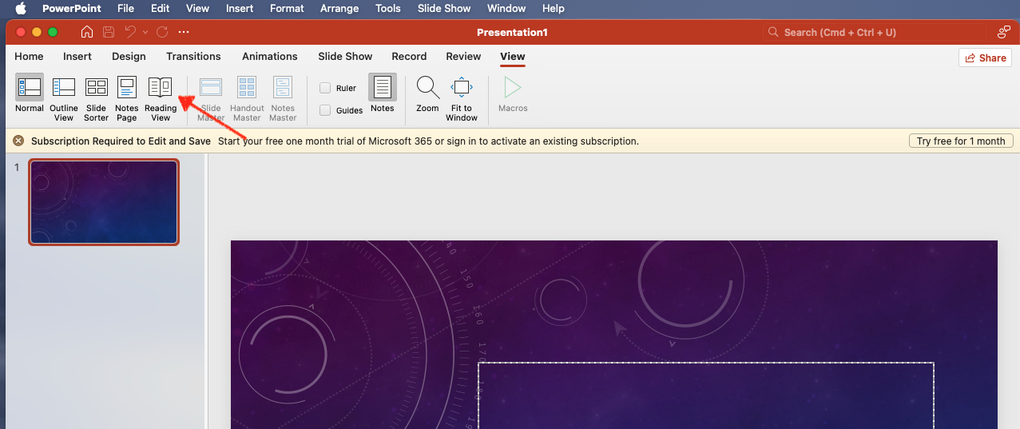
- Or click Reading View in the toolbar.
- In the video call window choose the "Share your screen" at the bottom of the window.

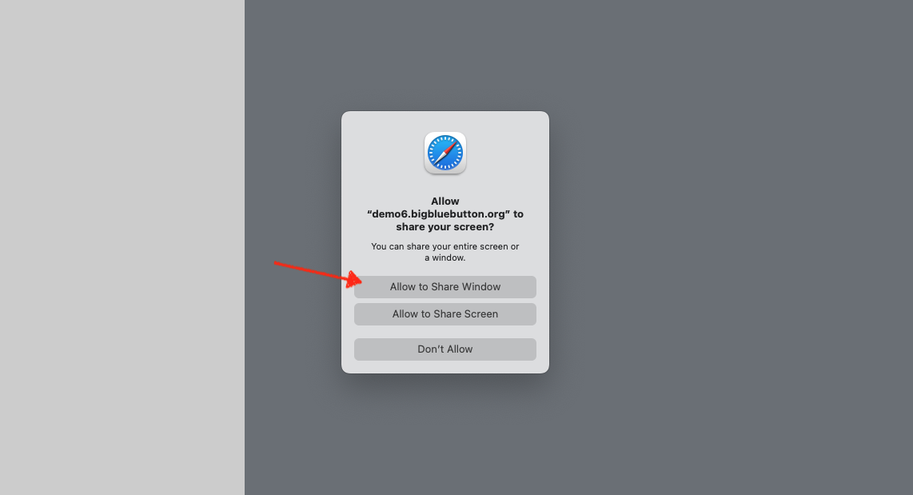
- Click Allow to Share Window
- Every window on your screen will get a "Share This Window" button. Click on the PowerPoint window and click "Share This Window".
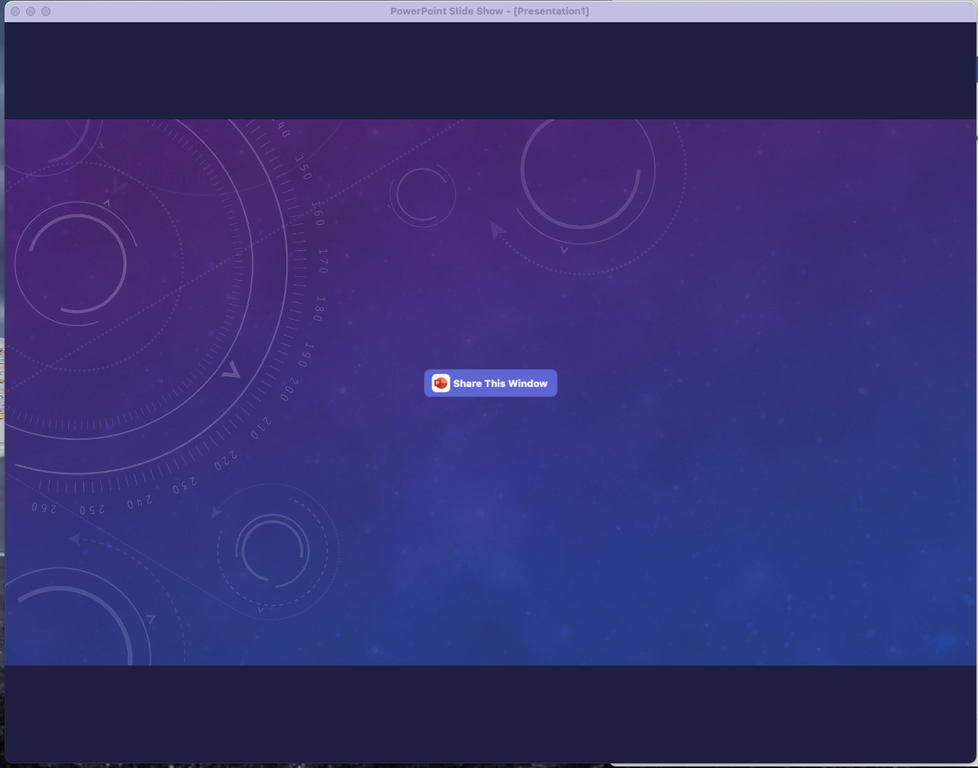
- Your PowerPoint presentation will now be visible to others via the video session.
- You may use the arrow keys on your keyboard to change slides or click on the PowerPoint window to advance slides.
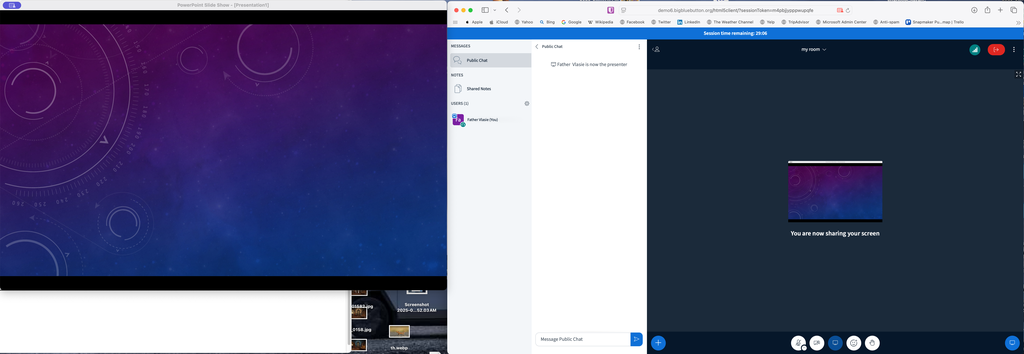
- To stop sharing the PowerPoint window press "esc" on the keyboard or click on the last slide to exit. Screen sharing will stop automatically when PowerPoint exits Reading View.