Creating Lessons: Intermediate
Creating Lesson using Planner
- Log in to Gibbon at gibbon.spots.edu.
- Go to Learn>Planner)
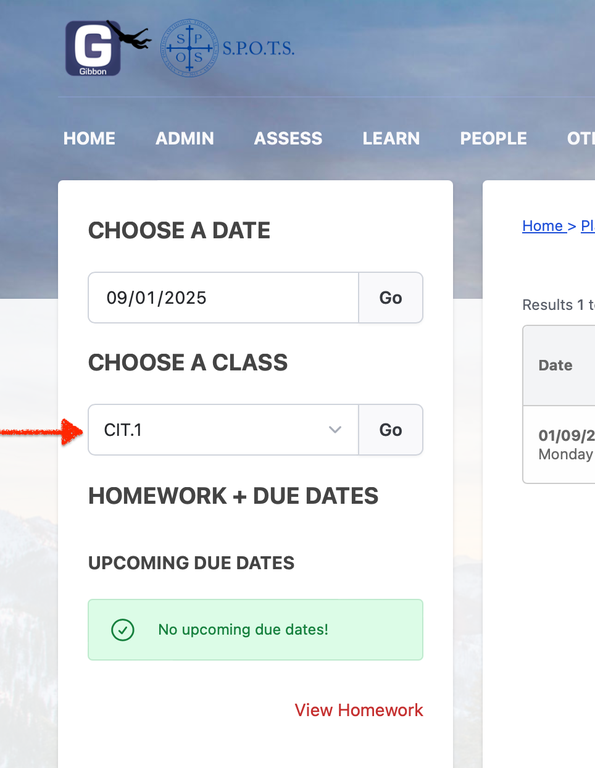
- Choose a class from the popup menu then click Go.
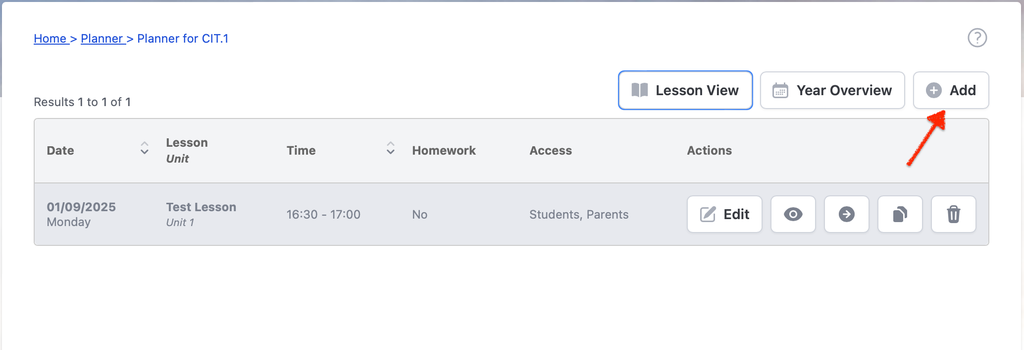
- Click ⊕ Add:
- Enter a name for the lesson. Gibbon will fill in the Date, Start Time, and End Time based on the next scheduled slot for your class.
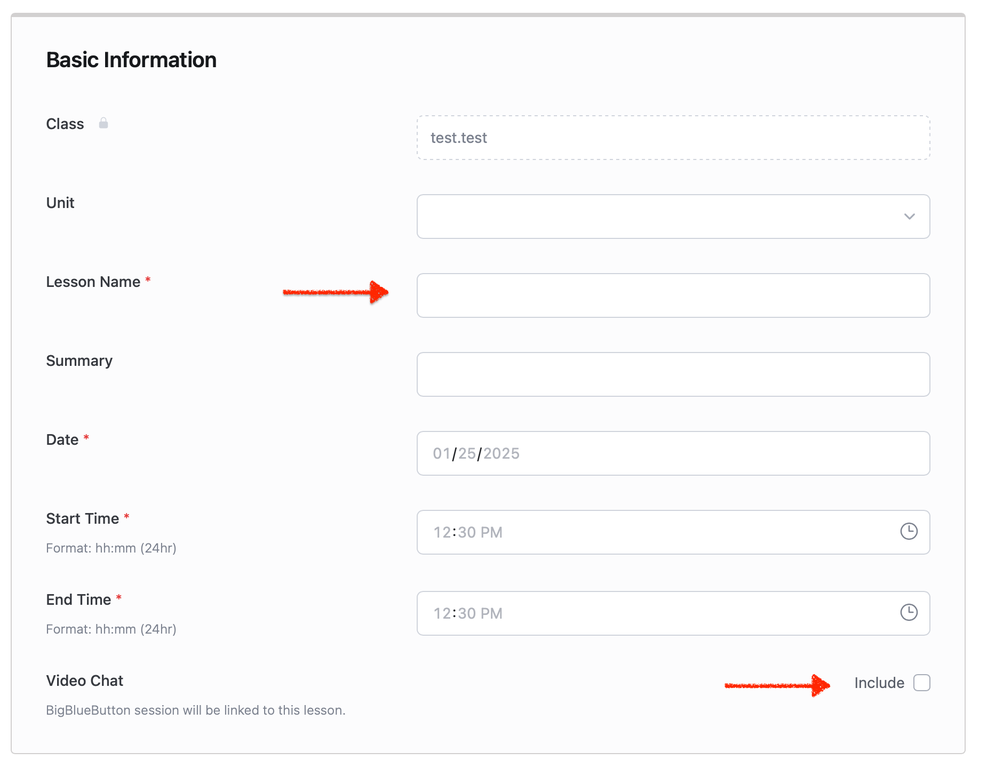
- Click Include under Video Chat if you require video conferencing for this lesson.
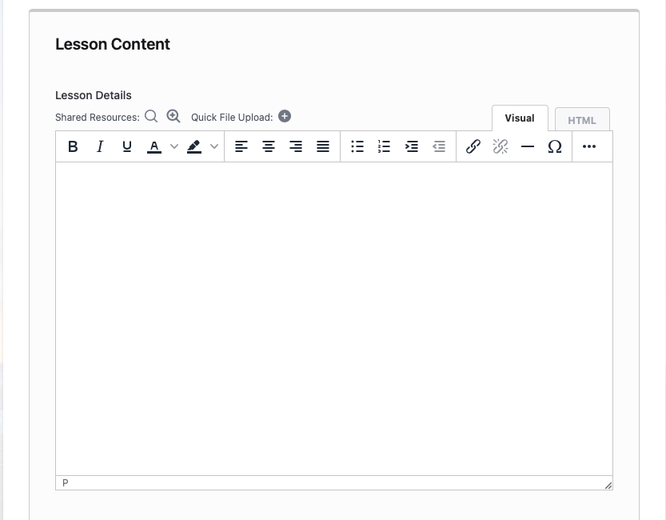
- Enter your lesson content under Lesson Details. Use the Quick File Upload button to upload files for the lesson such as PDFs or images.
- Click Submit.
- Gibbon will save the new lesson and then load the information for the next lesson slot. This enables one quickly to add more lessons.
📌 Please Note: Only use the Notify all class participants check box if the changes to the lesson are really very important.