Setting up Onsite Class Video
- Turn on the big screen via remote control.
- Press anything on the keyboard to wake up the computer (if needed).
Log in with the default user.
- It is recommended to restart the computer for the most reliable experience. It is not mandatory but it only takes 25 seconds and it ensures all the connected devices are cooperating.
- To restart click on the 🍎 menu and choose Restart... Log in again when the system is loaded.
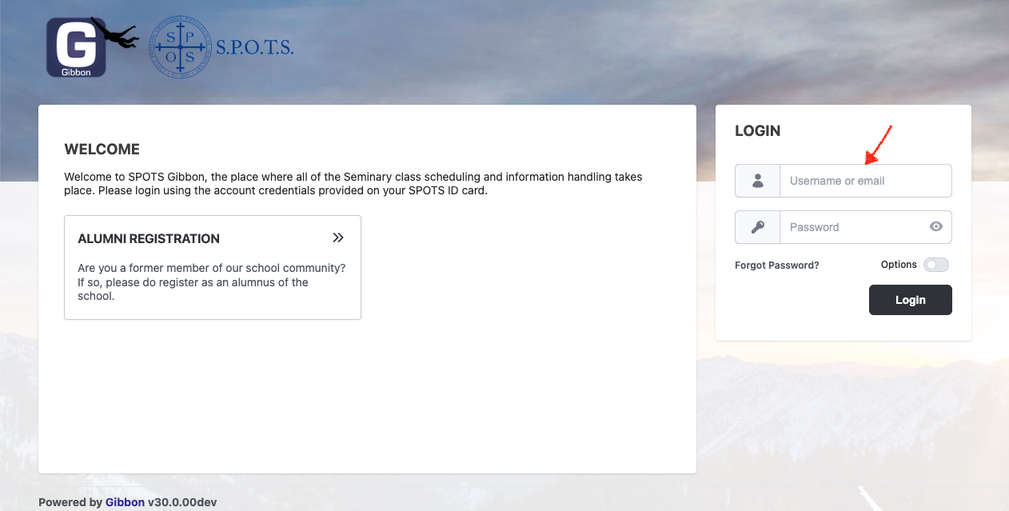
Double-click the icon on the desktop named "SPOTS - Gibbon" (or go to gibbon.spots.edu in Brave)
- Click the username field to populate the login credentials (saved in the browser) and log in.
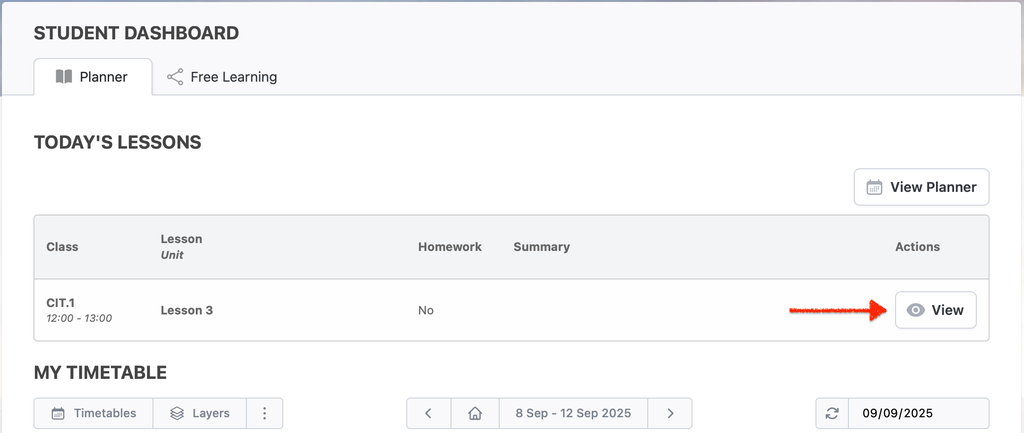
- Click on the View button (eye symbol) under Today’s Lessons.
- Scroll down to the video view.
- Click Join with Microphone.
- Use HDL300 for the microphone.
- Use Meeting Owl for the speaker.
- Choose Fullscreen from the menu accessed via the 3 dots in the top-right corner.
- Click on the camera button and add Meeting Owl.
- Add whiteboard (optional)
- Click on camera settings button and choose Open Advanced Options.
- Choose Insta360 Link from the popup menu.
- Use the following gesture to activate the whiteboard view (the camera uses gesture and face recognition)
- Stand in front of the whiteboard and look at the small camera hanging from the ceiling.
- Hold up your right hand and make a victory gesture ✌ Make sure your hand is not blocking the camera's view of your face.
- The camera light will start blinking yellow.
- You may lower your hand now but please wait until the yellow light stops blinking before walking away from the whiteboard.
- Click Add Camera.
You may start the class now!
- At the end of the lesson click the red exit button to exit (near top right corner).
- Close the browser window.
- Turn off the TV (please note that the classroom computers are set never to sleep to avoid unexpected interruption of classes. If you forget to turn off the big screen it will remain on, like forever, which will shorten both its life and the life of those who get caught leaving it on.)
Troubleshooting tips
If the whiteboard camera's initial view is too far away from the whiteboard, carefully rotate the camera mount by hand.
All of the below issues can be resolved by restarting the computer:
A camera does not show in the list.
A sound device does not show in the list.
No sound is being heard by remote participants even though the microphone device is showing and selected and mute is not applied.
If the 3 dots do not show in the top-right corner of the video section, click on the left arrow at the top of the Public Chat to shrink it. This will provide more screen space for the main area and the 3 dots will show again.